

November 8, 2026
Google Lens API · find pages and products from an image
Visit SearchApiSearchApi’s Google Lens API searches with a public image link. Old Products code now fails. Pick visual or exact matches, then check every match yourself.
The short answer
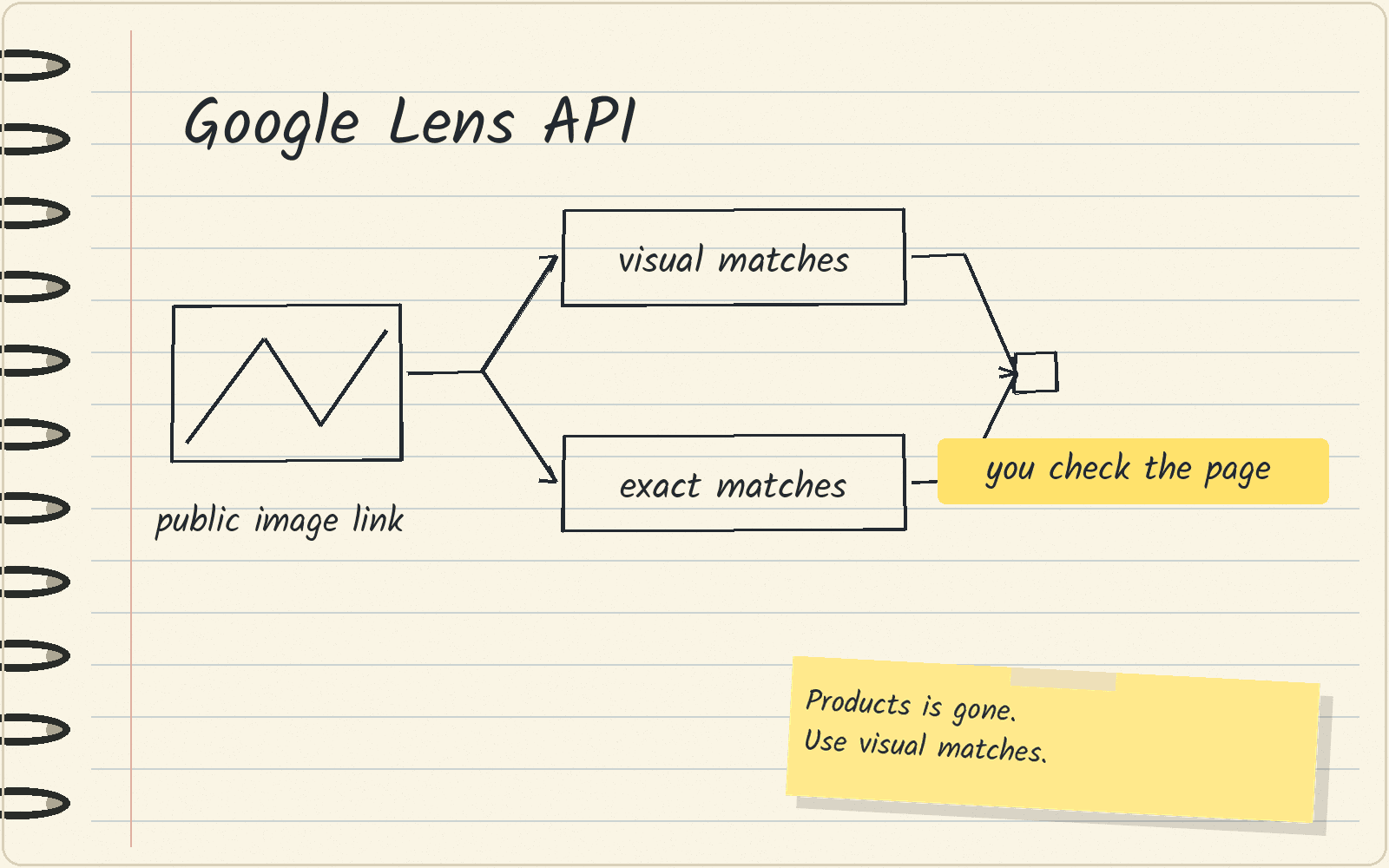
An API is a way for your code to ask a service for data and get it back. Pick SearchApi’s Google Lens API if you have a public link to an image and want pages with similar or identical images. SearchApi is a third-party company that collects Google Lens results, and it is not part of Google.
Use visual matches to find similar-looking images and products. Use exact matches to find pages that carry the same image. Every match is a lead to check, so a person should open the page before treating an item as the same product.
If your code still asks Lens for Products, change it now. A request is one call your code makes to the API, and from October 7, 2026, a Products request can fail.
This guide has no prices. SearchApi’s pricing lists plans by number of searches, and it does not say how much of a plan one Google Lens request uses. Run a few test requests and check what your account is charged before you set a budget.
Old Products code now fails
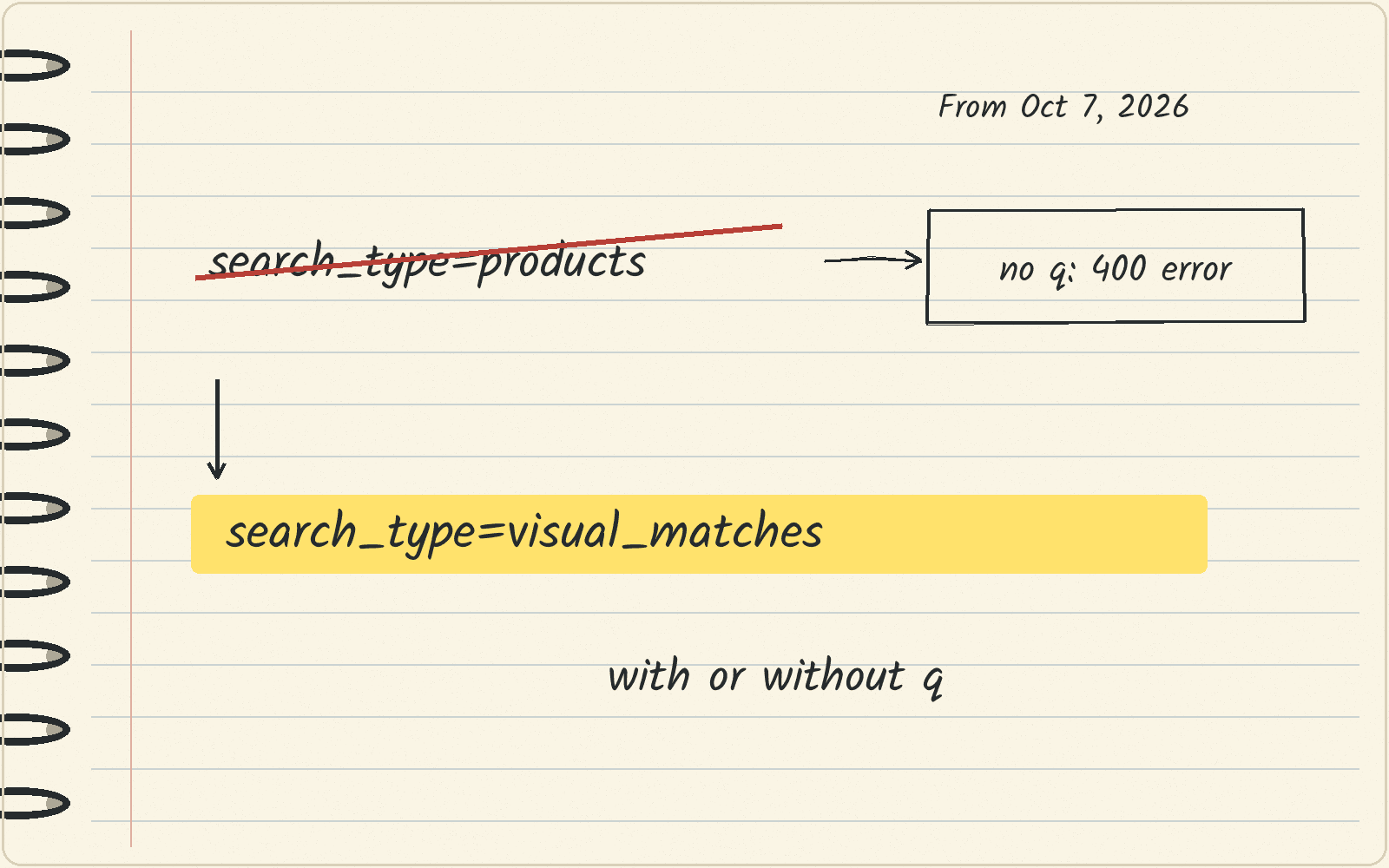
SearchApi’s Google Lens documentation says that from October 7, 2026, Google Lens has no Products tab. The search_type setting tells SearchApi which kind of Lens results to return. SearchApi no longer supports search_type=products.
The q setting is an optional text query sent along with the image. A request with search_type=products and no q returns a 400 error, which means SearchApi rejects the request.
SearchApi says to use search_type=visual_matches instead, with or without q. Change the search_type value in your code. Adding q to a Products request is not a documented fix. Some visual matches carry price and stock information.
How to pick the right search type
The search_type setting has three supported values: all, visual_matches and exact_matches.
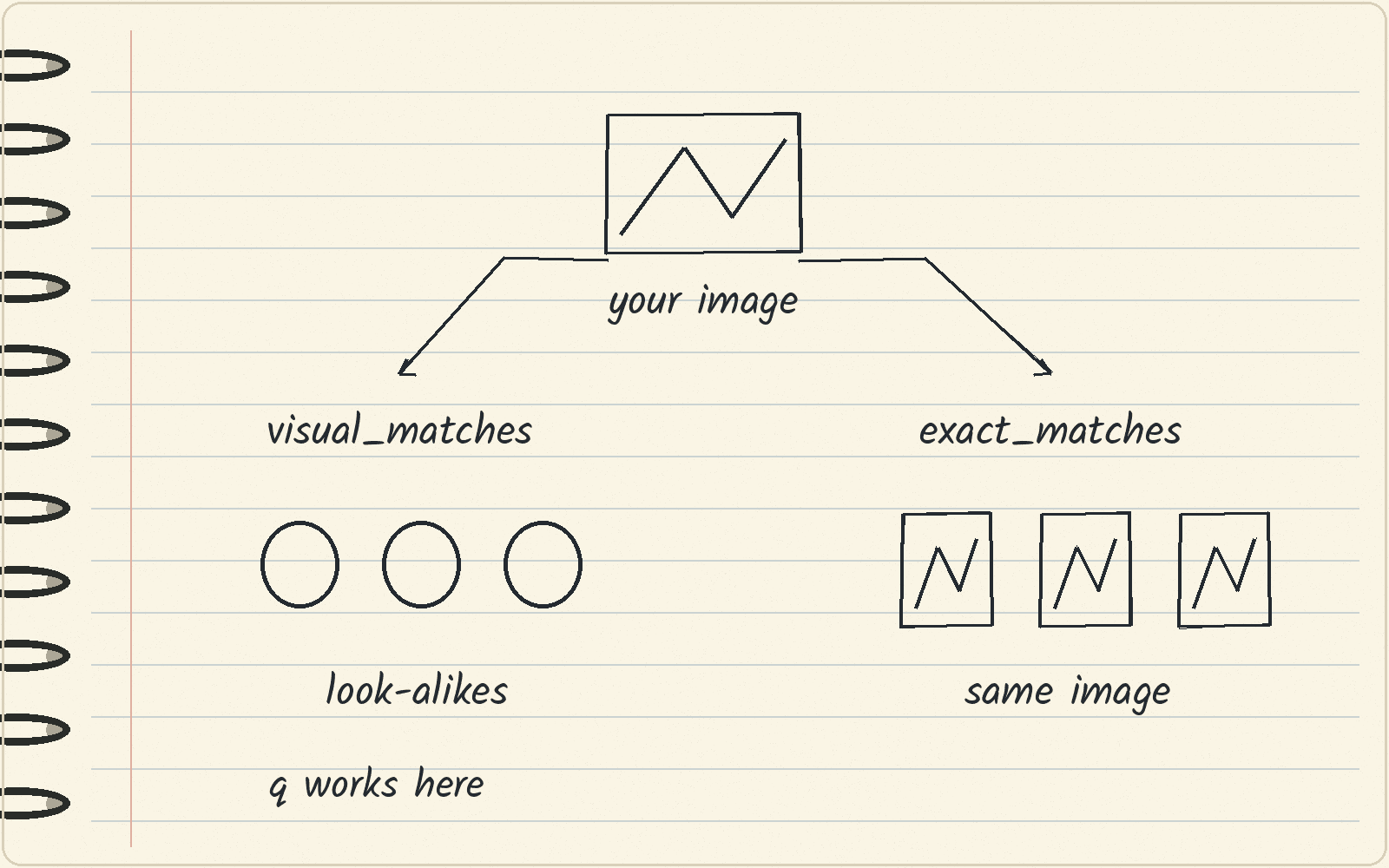
Use visual_matches when you want images and products that look like yours. Use exact_matches when you want pages that use the same image. Use all when you also want the web results that Google shows below the visual matches, which SearchApi returns as organic_results.
The q text query works only with all or visual_matches. With q, those two run the same search, so pick visual_matches when you add text.
The image link must point straight to an image file in a format such as .jpg or .png, and anyone must be able to open it. An image behind a login does not meet that rule.
Some result links come back as Google redirects
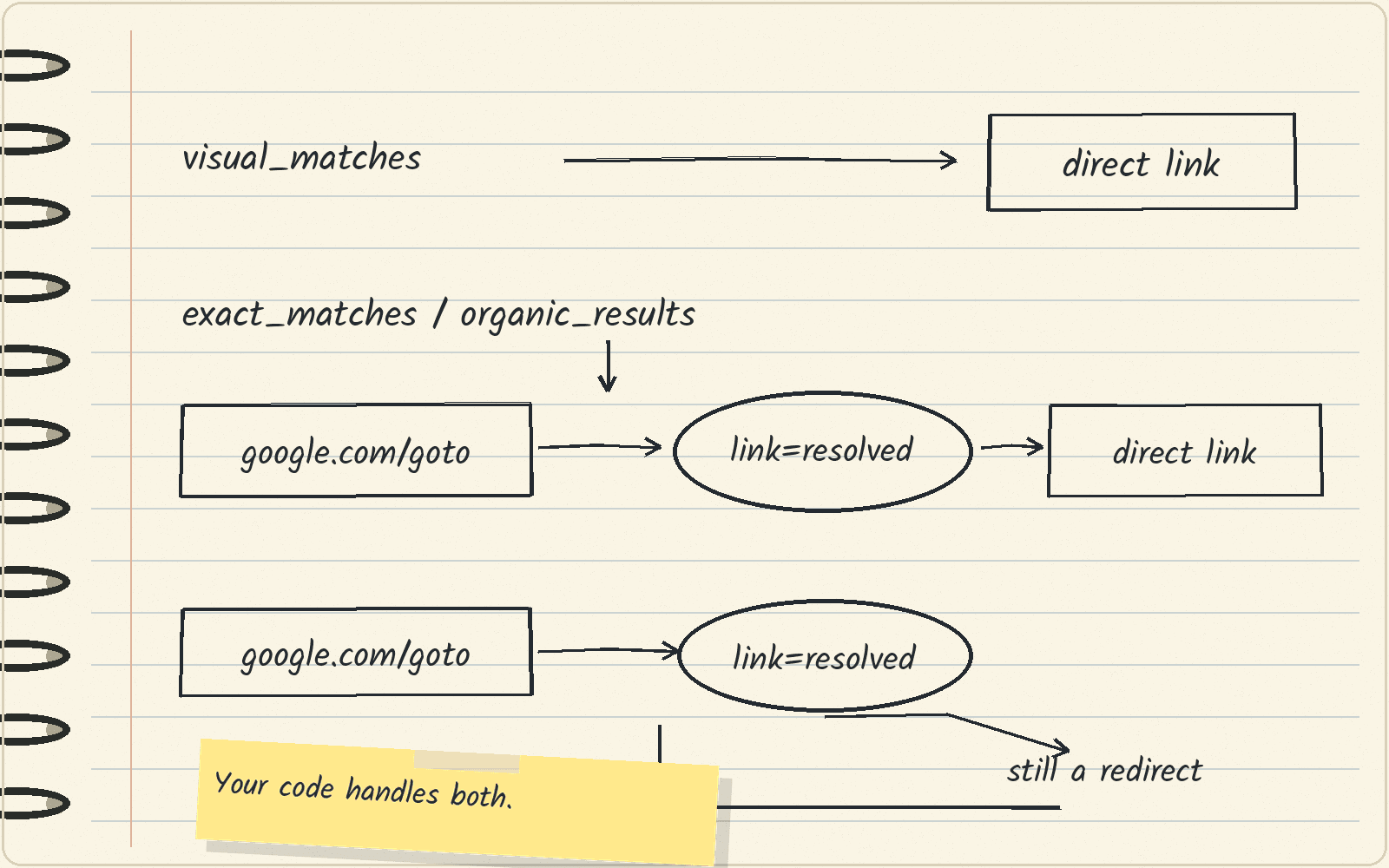
A redirect is a link that sends you on to another page. Google serves exact_matches and organic_results links as encrypted redirects that start with https://www.google.com/goto?url=. The visual_matches links are already direct.
The link setting controls what you get. By default it is raw, and the redirect comes back as it is. Set it to resolved to get the direct address of the page instead.
SearchApi warns that an exact_matches page can carry several hundred links, and each one is followed one at a time, so expect a noticeable increase in response time. A redirect that cannot be resolved stays as the redirect link. So even with resolved, your code should still handle https://www.google.com/goto?url= links.
Crop the image to the part you want to search
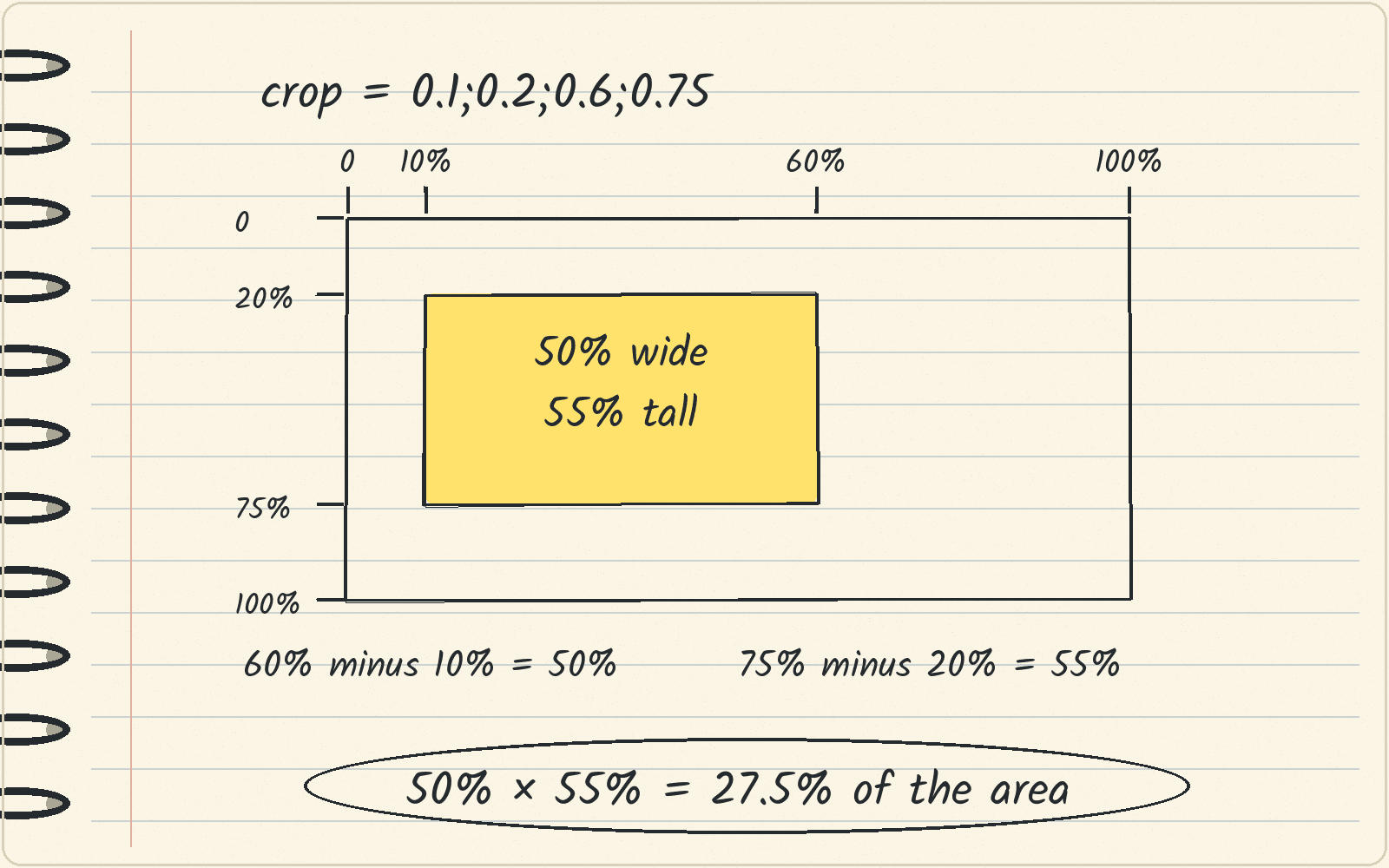
The crop setting cuts the image before the Lens search. You give four numbers between 0 and 1 for left, top, right and bottom. In SearchApi’s example, 0.1;0.2;0.6;0.75 selects the area from 10% to 60% of the width and from 20% to 75% of the height.
The math: 60% minus 10% is 50% of the width. 75% minus 20% is 55% of the height. 50% × 55% = 27.5% of the image’s area.
Left must be less than right, and top must be less than bottom. Use a crop when the photo shows several items and you want Lens to look at one of them.
Check every match before you act on it
A visual match is an image that looks like yours. An exact match is a page that carries the same image. Neither one proves that the item on the page is the same product as yours. Open the page, compare the item and its details, and decide yourself. Finding a matching image or page does not give you the right to reuse that image, and Google tells people to make sure a license is legitimate and check the exact terms of reuse first.
What to do this week
Search your code for search_type=products and change it to visual_matches. Then take one public image link and run visual_matches, then exact_matches with link=resolved, and compare the pages you get. Check what your account was charged before you run a full list.
Next · SearchApi review covers the tool as a whole · Web search APIs compares search APIs by what they return.
Sources · SearchApi Google Lens API documentation, viewed November 8, 2026 · Google Search Help: Find images you can use and share, viewed November 8, 2026 · SearchApi pricing, viewed November 8, 2026
Related
- Beehiiv Ad Network · who can join and how you get paid
- Outscraper pricing · what 10,000 Google Maps businesses cost
- Google reviews API · your own listing or anyone else’s
- YouTube transcript API · free library or a paid search API
- SearchApi
- Bing Search API alternatives · the API retired in 2025
- Best Bright Data alternatives · Firecrawl for clean page text, and when to stay on Bright Data